
04 / DESIGN HANDOFF
NetBox and Nautobot export Move the plan into your source of record.
Design racks, devices, cabling and power in Railyard, then prepare structured data for NetBox or Nautobot. The export is an import bundle you can inspect and apply in your DCIM workflow, not a screenshot of the design.
Explore the example first; an account is needed to save your own work.
THE JOB TO DO
A design handoff should preserve the details
Redrawing a finished rack plan inside a DCIM costs time and invites naming or placement mistakes. A structured handoff keeps the modelled estate connected to its device and cable records, while still letting the operational system remain the source of record.
THE WORKFLOW
Prepare a reviewable import bundle
Finish and review the plan
Check rack placements, device identities, cabling and power findings in the editor. Choose which space should become a NetBox site when your hierarchy needs that boundary.
Choose the target format
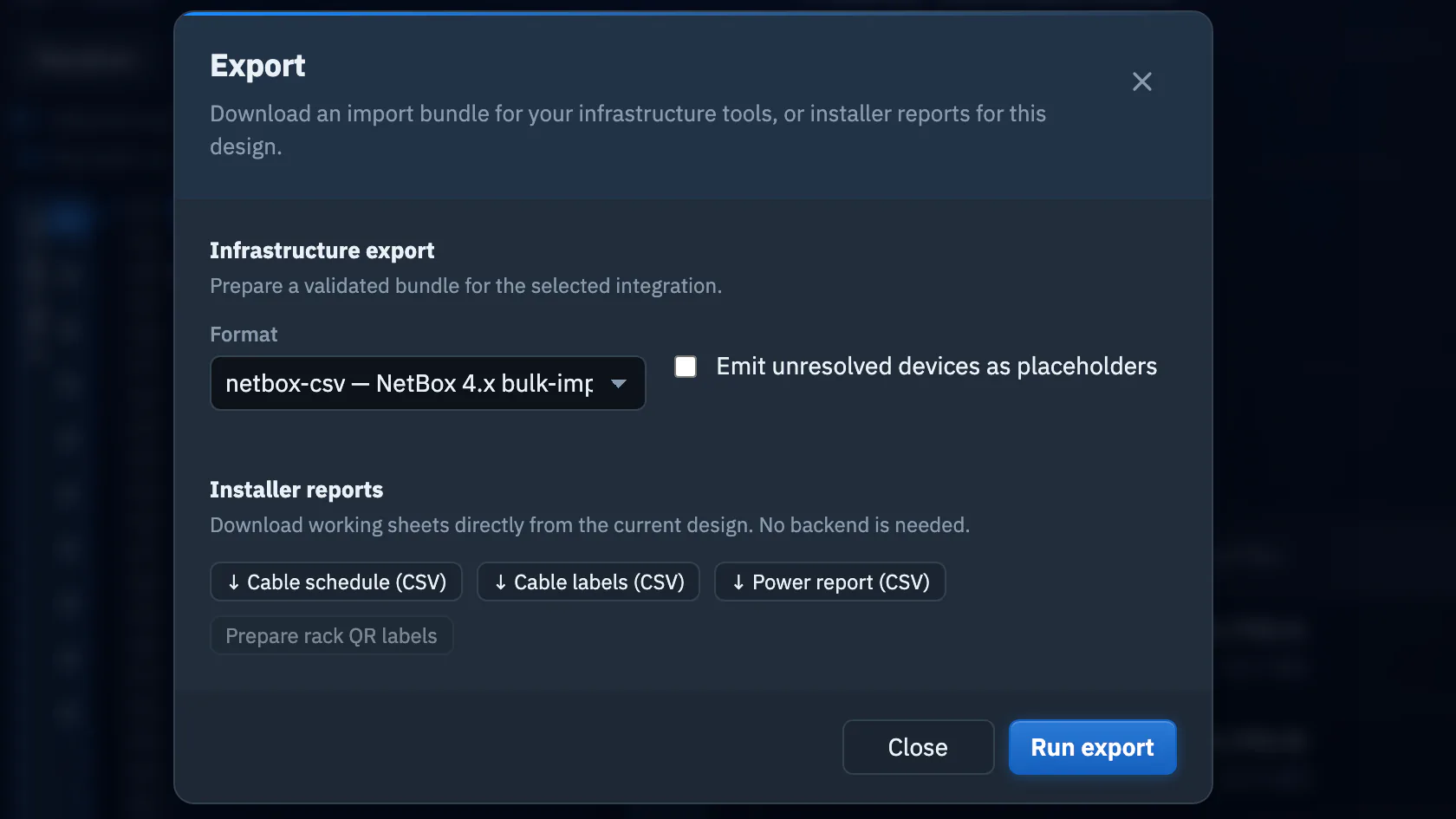
Open Export and select a NetBox 4.x or Nautobot 2.x bulk-import CSV bundle. Railyard also offers its canonical project JSON for preserving the full design.
Read the warnings before import
Inspect any unresolved placements and follow the bundle's import order. Use the separate cable schedule, label sheet and power report CSVs for installation planning.
THE RESULT
Keep design and operations connected
The bundle gives an operations team records it can review and import, while the canonical Railyard JSON retains details a target system cannot represent. You can revise the design and generate a new handoff when the plan changes.
Designing this is free on Community. NetBox bulk-import bundle and Nautobot bulk-import bundle are deliverables: exporting them needs a Project Pass for the estate or a Pro, Team or Partner plan. The raw project file is free on every plan. See pricing →
SEE IT IN CONTEXT
Start with a real example estate.
Follow one guided task, then inspect how the rack, cables, power and export fit together.